Home › How to Add Indicators
How-to

How to Add Indicators on TradingView

30-second walkthrough for adding indicators on TradingView, with per-plan limits, customization, removal, templates, and a Pine Script primer.

How do I add an indicator on TradingView?

To add an indicator on TradingView, click the Indicators button at the top of the chart (or press the / key), search for the indicator by name, then click it to add. The indicator appears on the chart immediately. Double-click its name in the chart legend to customize inputs and colors. The same workflow works on the Windows desktop app, Mac desktop app, and web platform.
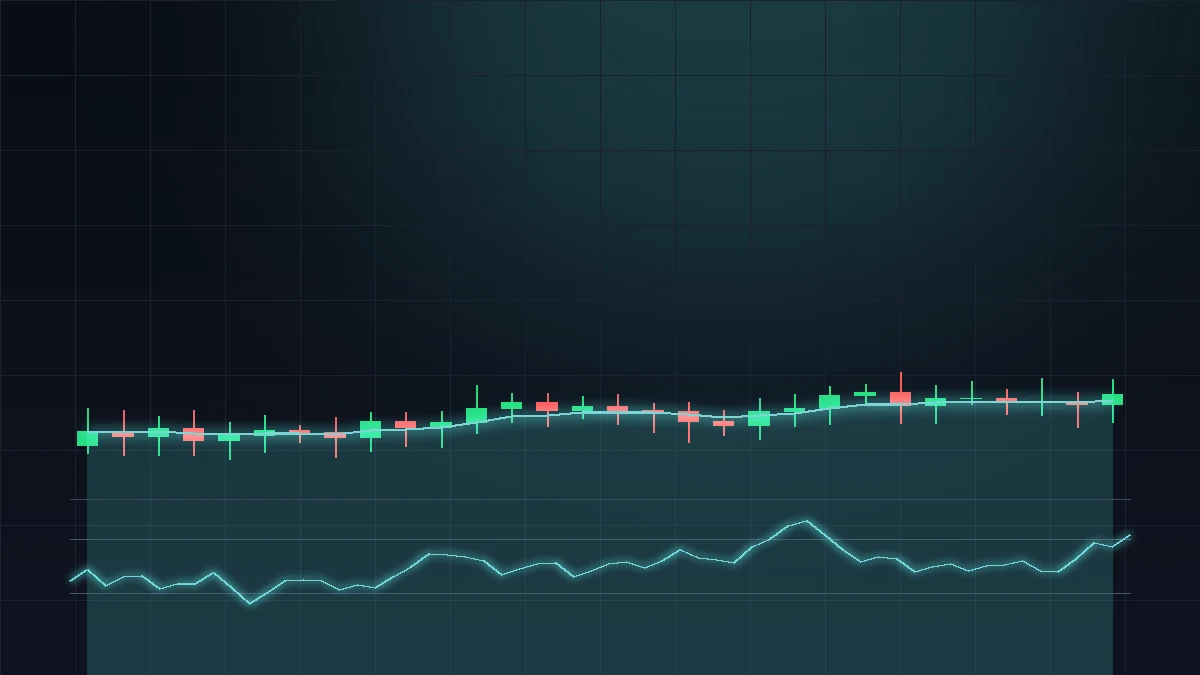
How to add indicators on TradingView — RSI and EMA indicators applied to a candlestick chart
RSI and EMA indicators added to a TradingView chart via the Indicators dialog.

The indicator catalog includes 100+ built-in technicals (Moving Averages, RSI, MACD, Bollinger Bands, VWAP, Ichimoku Cloud, ATR, Stochastic, OBV, MFI, ADX) plus thousands of community indicators written in Pine Script. Built-ins are free on every plan; community indicators are free if the author has published them publicly. The only paywall is the indicators-per-chart cap.

Step-by-step: add an indicator in 30 seconds

  1. Open the Indicators dialog. Click the Indicators button (flask icon) at the top of the chart, or press /. The dialog opens with a search bar.
  2. Search by name. Type RSI, MACD, EMA, or any other indicator. The list filters live. Built-ins appear under Technicals; community scripts appear under Community.
  3. Click to add. A single click adds the indicator. Oscillators (RSI, MACD) drop into a new pane below the chart; overlays (EMA, VWAP) plot directly on price.
  4. Open settings. Double-click the indicator name in the chart legend (top-left). Inputs change the calculation, Style changes colors and line widths.
  5. Save the layout. Press Ctrl+S to save. The indicator and its settings sync with your account and load on every device.

How many indicators can I add per chart?

PlanIndicators per chartCharts per layoutTotal indicators in layout
Free313
Essential5210
Plus10440
Premium258200
Ultimate258200

The limit is per-chart. If you need 6 indicators but only have a Free account, the workaround is to combine: an EMA Ribbon counts as one indicator but plots multiple EMAs; a Volatility Bundle counts as one but plots ATR + Bollinger Bands + standard deviation. Most overlay needs can be served by 3-4 well-chosen multi-output scripts.

How to customize TradingView indicator settings

Every indicator has two tabs in its settings dialog. Inputs changes how the indicator is calculated — period length (e.g. 14 for RSI, 20 for Bollinger), the data source (close, hl2, ohlc4), and indicator-specific options (e.g. RSI overbought/oversold thresholds, Bollinger standard deviations). Style changes appearance — line color, line width, fill area, plot visibility per output. Inputs you change here only apply to this instance; click Defaults → Save as Defaults to make them stick for every future add of the same indicator.

If you build a multi-indicator setup you use across symbols, save it as a Chart Template under Templates → Save Chart Layout As. Templates carry all indicators, their settings, and the chart's colors — apply one to any symbol and the full setup loads in one click.

How to remove an indicator from a TradingView chart

Three quick ways. Hover the indicator name in the chart legend (top-left) and click the X that appears. Right-click the indicator's plot on the chart and choose Remove. Or press Ctrl+Z immediately after adding — standard undo works for indicator adds. To clear every indicator at once, right-click the chart and choose Remove Indicators; this leaves your drawings and chart settings intact.

To temporarily hide an indicator without deleting it, click the eye icon next to its name. The indicator remains in the chart's state but stops drawing, which lets you compare with/without quickly.

How to write your own TradingView indicator (Pine Script)

Open the Pine Editor panel at the bottom of the chart (View → Pine Editor, or press Ctrl+`). The editor opens with a starter script. Replace it with your code, click Save, then Add to Chart. Pine Script v5 syntax is documented at pine-script-reference.tradingview.com and a beginner's tutorial ships in the editor's Help menu. Custom scripts behave identically to built-ins — you can adjust inputs and styles, save them in templates, and publish them publicly so others can use them.

If you want to share an indicator widely, publish it via Publish Script in the editor. Public scripts get a permanent URL, appear in the community search, and can be added by other users with a single click.

Bottom line

Adding an indicator on TradingView takes under 30 seconds. Press the forward slash key, type the indicator name, click to add, then double-click its name in the chart legend to customize inputs and style. The Free plan caps you at three indicators per chart; Essential at five, Plus at ten, and Premium and Ultimate at twenty-five. All 100+ built-in technicals are free on every plan, and the community Pine Script library is also free. To apply a multi-indicator setup to a new symbol, save the chart as a Chart Template under Templates → Save Chart Layout As, then load it on the new symbol with one click. Anyone can write their own indicator in Pine Script v5 — the editor ships with the chart and the language reference is free.

Common questions

How do I add an indicator on TradingView?

Click Indicators (or press /), search by name, click to add. The indicator appears immediately.

How many indicators can I add per chart?

Free: 3. Essential: 5. Plus: 10. Premium / Ultimate: 25.

Are indicators free on TradingView?

Yes — all 100+ built-ins and most community Pine Script indicators are free.

How do I change indicator settings?

Double-click the indicator's name in the chart legend. Inputs tab = calculation. Style tab = colors.

How do I remove an indicator?

Hover the indicator name → click the X. Or right-click on chart → Remove. Or Ctrl+Z after adding.

What's the difference between an indicator and a strategy?

Indicator = visualization. Strategy = backtest with buy/sell rules and performance report.

Can I write my own indicator?

Yes — open the Pine Editor, write Pine Script v5, save, Add to Chart. Free for all users.

How do I reuse the same indicators across symbols?

Save as a Chart Template (Templates → Save Chart Layout As), then apply to other symbols.

Related

Add indicators on the desktop app

Install TradingView for Windows, sign in, and your indicators sync across every device.

Download for Windows
Affiliate disclosure: Authorized TradingView affiliate. Download links on this site refer visitors to the official TradingView desktop page at tradingview.com. We may earn a commission if you sign up for a paid TradingView plan after using a link from this site. This site is not the official TradingView website. Nothing on this page is financial advice.